📍 Furniture Variants
Introduction
A furniture definition must have at least one variant. Each variant describes what the furniture looks like and how it occupies space.
Variant names are arbitrary and not limited by the furniture system. The three names you see most often — ground, ceiling, wall — come from the default furniture_item behavior: it reads the clicked face (top → ground, bottom → ceiling, side → wall) and places the matching variant. This is just a convention, not a rule.
You can define completely different variants. A battery furniture could use charged, half_charged, and empty variants — switched via API as the charge level changes. A light sensor could pick day or night based on the time when placed.
The default furniture_item behavior only knows ground, ceiling, and wall. To place furniture with custom variant names, you need to register your own item behavior through the API, or use set_furniture_variant to switch after placement.
Here is a complete variant for a 2-block-tall standing lamp:
furniture:
  default:standing_lamp:
    variants:
      ground:
        # offset for drops so they don't spawn inside blocks (default: 0,0,0)
        loot_spawn_offset: 0,0.5,0

        # Display Elements — what the furniture looks like
        elements:
          - type: item_display
            item: default:standing_lamp

        # Furniture Hitboxes — how the furniture occupies space & how players interact with it
        hitboxes:
          - type: interaction
            width: 1
            height: 2
            blocks_building: true
            interactive: true
Elements
In this system, an Element refers to each individual component that makes up a piece of furniture. Most furniture items are simple and require only one element.
However, you can create more complex designs by assembling multiple elements together.
For example, a hologram projector can be built from two elements: a Base and the Projection itself. The base can have a fixed orientation, while the projection can be set to always face the player.
Display Parameters
The following parameters apply to item_display, text_display, and block_display element types.
# Position & transform
translation: 0,0.5,0       # Offset (x,y,z). Recommended over position
position: 0.5,0,0          # Absolute position (x,y,z)
scale: 1,1,1               # Scale (x,y,z). Single number like scale: 1.5 also works

# Rotation (choose one, rotation recommended)
yaw: 0                     # Around Y axis
pitch: 0                   # Around X axis
rotation: 45               # Single number → around Y axis
rotation: 45,45,0          # Euler angles (x,y,z), See the rotation tool below
rotation: 0,0,0.707,0.707  # Quaternion (x,y,z,w), See the rotation tool below

# Display
billboard: fixed           # fixed / vertical / horizontal / center
glow_color: 255,255,255    # Glow color (RGB)
brightness:                # Brightness override
  block_light: 15
  sky_light: 15
view_range: 1.0            # View distance coefficient

# Shadows
shadow_radius: 0           # Shadow radius
shadow_strength: 1         # Shadow strength
Use translation instead of position, and rotation instead of yaw/pitch. This avoids sending position synchronization packets and ensures the best visual performance.
position moves the display entity to a new coordinate location. translation shifts the entity relative to its current position without changing its coordinate.
For wall or ceiling variants, the display entity can appear black if its position stays at 0,0,0. Add a small position offset, then cancel it back with an opposite translation:
wall:
  elements:
    - type: item_display
      item: default:my_furniture
      position: 0,0,0.5        # move it out half a block from the wall
      translation: 0,0,-0.5    # pull it back so it still renders in the right place
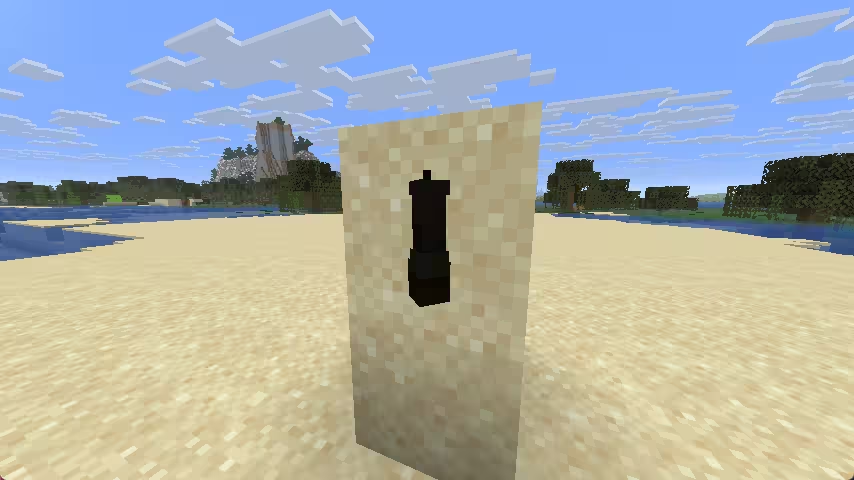
Item Display
https://minecraft.wiki/w/Display
Required Arguments
type: item_display
item: default:bench
Optional Arguments
display_transform: none # none / third_person_left_hand / third_person_right_hand
                        # first_person_left_hand / first_person_right_hand
                        # head / gui / ground / fixed
copy_data:
  - minecraft:dyed_color
More parameters see Display Parameters.
display_transform controls the item model's transform mode. In most cases, the default none is sufficient; use other modes when you need to simulate how items look in hand, on ground, etc.
Use copy_data to copy selected components from the furniture's source item to the rendered item (see the example in the Item section below). tint_source remains available as a legacy alias.
Text Display
https://minecraft.wiki/w/Display
Required Arguments
type: text_display
text: Hello <papi:player_name>
Optional Arguments
line_width: 200
background_color: 64,0,0,0 # ARGB
text_opacity: -1
has_shadow: false
is_see_through: false
use_default_background_color: false
alignment: center  # center / left / right
More parameters see Display Parameters.
Block Display
Renders a vanilla block using the block display entity.
Required Arguments
type: block_display
block: minecraft:stone              # Block state string (block ID or full state like minecraft:chest[facing=north])
More parameters see Display Parameters.
Item
Renders a dropped item
Required Arguments
type: item
item: default:bench
position: 0,1,0
# Copy the components needed by the rendered item from the furniture's source item.
copy_data:
  - minecraft:dyed_color
  - minecraft:map_color
  - minecraft:firework_explosion
  - minecraft:potion_contents
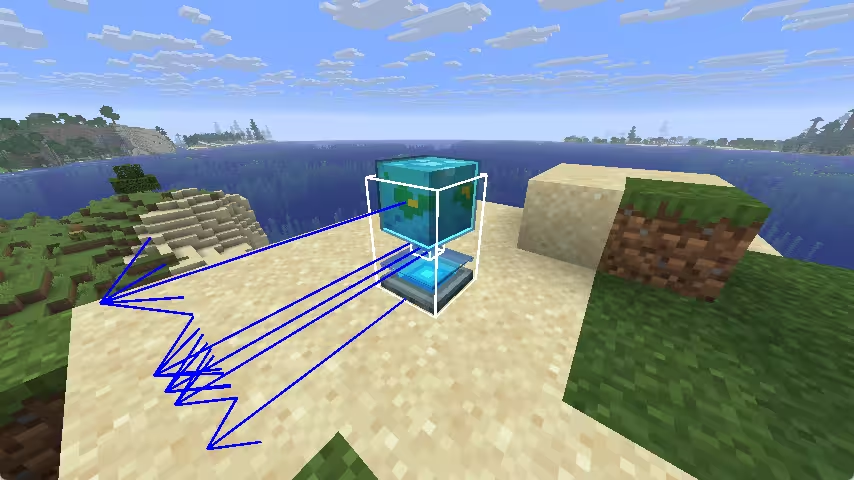
Armor stand
Renders a custom item based on armor stand
type: armor_stand
item: default:bench
position: 0,1,0
pitch: 0.0
yaw: 0.0
scale: 1
small: false
glow_color: white  # black, dark_blue, dark_green, dark_aqua, dark_red, dark_purple, gold, gray, dark_gray, blue, green, aqua, red, light_purple, yellow, white
# Copy the components needed by the rendered item from the furniture's source item.
copy_data:
  - minecraft:dyed_color
  - minecraft:map_color
  - minecraft:firework_explosion
  - minecraft:potion_contents
BetterModel
Render custom models using BetterModel
Required Arguments
type: better_model
model: custom_model # specifies the model to render
Optional Arguments
position: 0,0,0
yaw: 0
pitch: 0
sight_trace: true
tints:
  source: minecraft:dyed_color
  bones:
    - body
  children: true
tints.source reads a color from the furniture's source item. bones selects the BetterModel bones to tint, while children controls whether their child bones are included.
If the source item contains a player profile component, CraftEngine automatically applies that profile to the BetterModel model. No profile option is required. On legacy server versions, SkullOwner is used instead.
ModelEngine
Render custom models using ModelEngine
Required Arguments
type: model_engine
model: custom_model # specifies the model to render
Optional Arguments
position: 0,0,0
yaw: 0
pitch: 0
Hitboxes
A furniture hitbox defines the interactive volume where players can interact with the object. CraftEngine offers several hitbox types, each with distinct properties. You can add and configure the appropriate hitbox by setting its parameters to suit your needs.
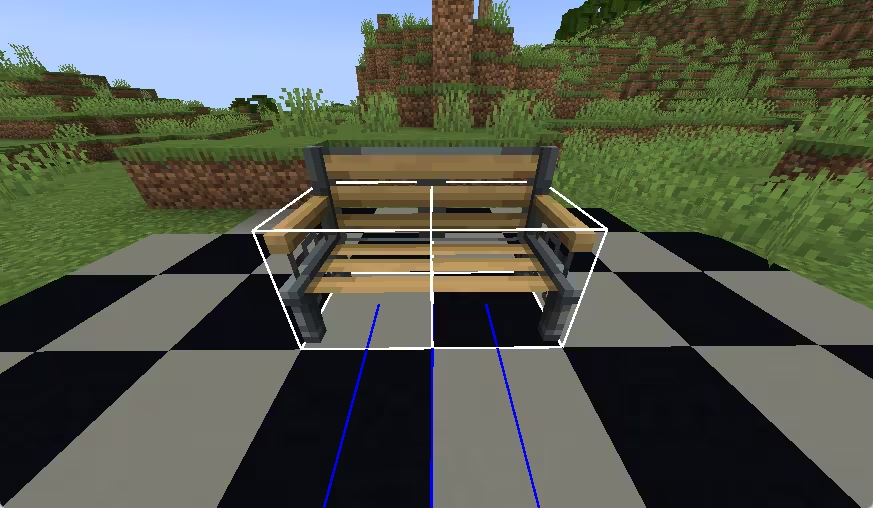
Run /ce debug furniture to toggle a debug overlay that reveals all furniture hitboxes. Invisible hitboxes become visible line-boxes so you can verify position and size. Misplaced or clipping hitboxes are highlighted for quick spotting.
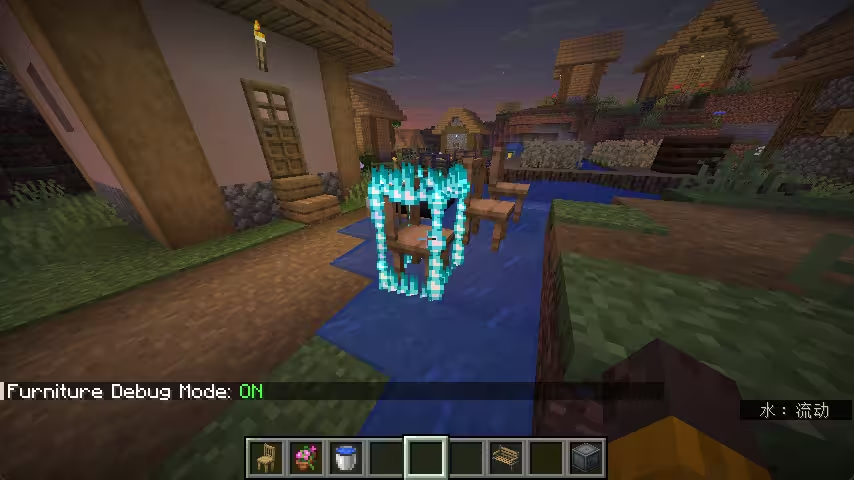
hitboxes made visible in debug mode
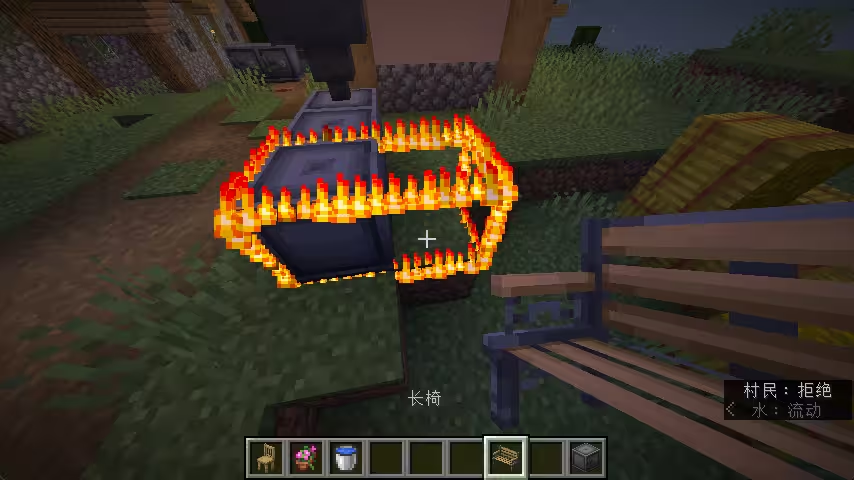
incorrect placement highlighted
Interaction
Entities and players can walk through it. Use this for click detection, seats, and blocking placement without physical collision.
type: interaction
position: 0,0,0
width: 1                         # or use scale: 1,2 as shorthand for width × height
height: 2
interactive: true                # whether players can click on it (default: true)
blocks_building: true            # whether it prevents block placement (default: true)
can_use_item_on: true            # whether placed items can interact with it (default: true)
can_be_hit_by_projectile: true   # (default: true)
invisible: false                 # whether visible via F3+B (default: false)
seats:
  - 0,0,-0.1 0
Shulker
Entities and players cannot walk through it.
type: shulker
position: 1,0,0
scale: 1                          # size multiplier (default: 1)
peek: 0                           # how "open" the shulker is, 0~100 (default: 0)
direction: UP                     # up / down / north / west / east / south
interaction_entity: true          # spawns an extra interaction entity for better click accuracy
interactive: true                 # (default: true)
blocks_building: true             # (default: true)
can_use_item_on: true             # (default: true)
can_be_hit_by_projectile: true    # (default: true)
invisible: false                  # (default: false)
seats:
  - 1,0,-0.1 0
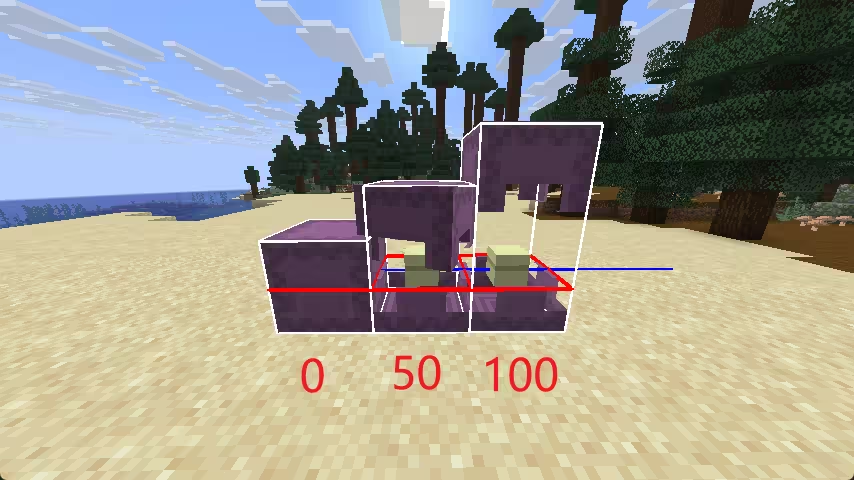
peek: 0 peek: 50 peek: 100
Happy Ghast
A large hitbox (4×4 blocks at scale=1). Entities and players cannot walk through it.
type: happy_ghast
position: 1,0,0
scale: 0.25                       # size multiplier (default: 1)
blocks_building: true             # (default: true)
can_use_item_on: true             # (default: true)
can_be_hit_by_projectile: true    # (default: true)
seats:
  - 1,0,-0.1 0
Custom
Uses any vanilla entity type for collision detection. Defaults to slime.
type: custom
position: 1,0,0
scale: 5                          # multiplies the entity's natural size
entity_type: slime                # any vanilla entity id, e.g. minecraft:creeper
blocks_building: true             # (default: true)
can_use_item_on: true             # (default: true)
can_be_hit_by_projectile: true    # (default: true)
seats:
  - 1,0,-0.1 0
Seat format: x,y,z [yaw] [force_player_rotation]. Angles are relative to the furniture's direction.
yaw: seat direction (default:0). Providing it limits body rotation; omitting it allows free rotation.force_player_rotation: turns the view once after mounting, preserving pitch.trueusesyaw; a number uses that angle (including0);falseor omitted leaves the view unchanged.
seats:
  - 0,0,-0.1           # free rotation
  - 1,0,-0.1 90        # limited body rotation, view unchanged
  - 2,0,-0.1 90 true   # also turn the view toward 90°
  - 3,0,-0.1 90 45.5   # turn the view toward 45.5° instead
Use a section to control body rotation separately:
seats:
  - position: 0,0,-0.1
    yaw: 90
    limit_player_rotation: false  # default: true if yaw is present, otherwise false
    force_player_rotation: true
A hitbox can contain multiple seats. Seats at the same position across hitboxes share one seat.
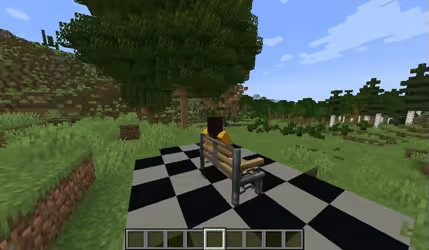
0,0,0 0
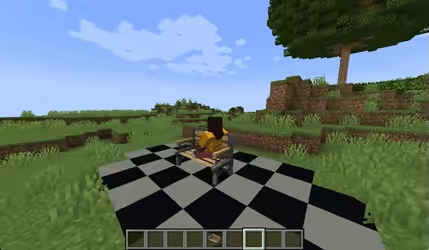
0,0,0
Entity Culling
Premium ExclusiveEntity culling hides furniture from players who can't see it, improving performance. It is enabled by default.
Disable it entirely for a variant:
ground:
  entity_culling: false
Or fine-tune its behavior:
ground:
  entity_culling:
    aabb: -0.5,0,-0.5,0.5,2,0.5   # bounding box override (x1,y1,z1,x2,y2,z2) — leave out, the plugin calculates it
    aabb_expansion: 0.25           # extra padding around the bounding box (default: 0.25)
    view_distance: 64              # max distance in blocks before culling (-1 = unlimited)
    ray_tracing: true              # whether to check line-of-sight (default: true)
External Models
A variant can reference a model from an external plugin (BetterModel, ModelEngine, or a custom source registered through the API).
furniture:
  default:bench:
    variants:
      ground:
        blueprint: blueprint_id    # the model id from the external plugin
When used as an element (under elements), the model renders through a fake entity — it spawns and despawns per-player via direct packets, with no server-side entity involved. Because there is no real server entity, you can list as many as you want.
When used as an external model (blueprint at variant level), the model binds to the furniture's real base entity — a server-tracked entity that exists in the world. Because it relies on the base entity, the field is a single value: you can only have one external model per variant.